



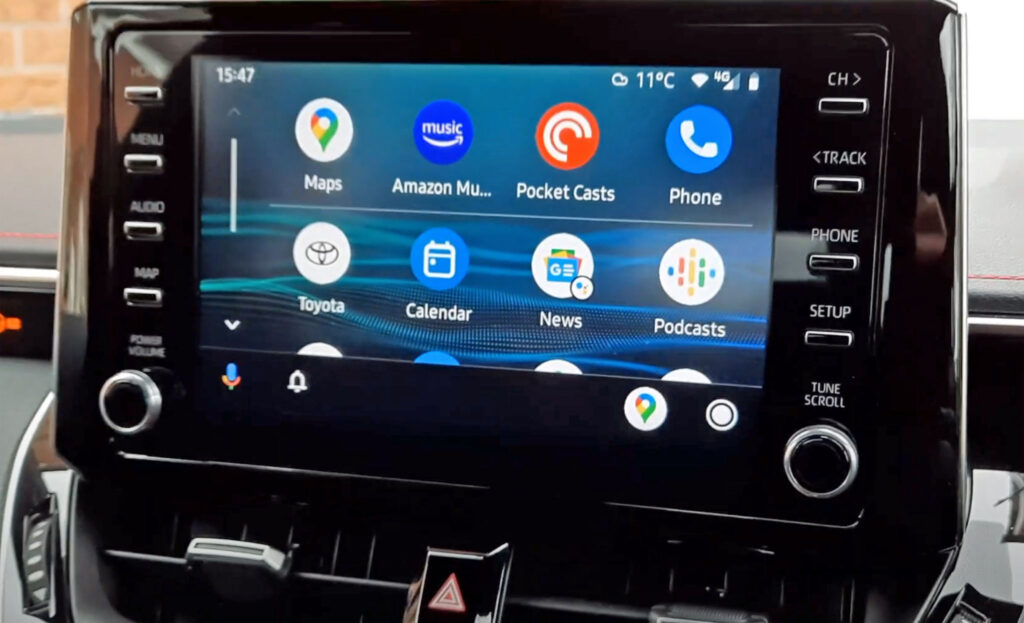
If there were a product available right now that lets you connect your phone to your car to use Android Auto without a USB cable, would you go for it? I would, and did, with a simple yet powerful device called AAWireless that does just that – lets me use Android Auto in my car with the phone being connected wirelessly.
I’ve been a huge fan of Android Auto for some years as the primary method of planning car journeys with Google Maps and navigating to where I want to drive: I follow the planned journey in Android Auto that’s paired to my Android smartphone, with the map displayed on my car’s head unit.
Not only that, Android Auto also fulfils a key role in managing my in-car entertainment such as listening to music via Amazon Music, Spotify, YouTube Music, etc. Via the head unit touchscreen or voice commands, I can use many other apps installed on my smartphone such as PockectCasts or Google Podcasts for listening to podcasts.
It also provides the means for voice-activated communication such as sending and receiving WhatsApp messages or SMS texts, all via the Android Auto home screen displayed on the head unit and with the ability to talk to the Google Assistant.
In sum, Android Auto replaces the car’s own navigation and entertainment system. Overall, it is far superior and intuitive to use – how much more intuitive can you get than with conversational English? There’s also live traffic information, increasingly important these days and probably more so than using a map on a familiar route. Google’s offering is more accurate than what you typically get on any car manufacturer’s system with third-party software that you usually have to pay for.
It’s four years on from when Google first made it possible to use Android Auto with cars’ head units. As more cars come to the market with more sophisticated technology and functionality aboard, consumer demand will increase for highly useful built-in features that just work. And consumer demand is also a driver, so to speak – people want to be able to interact with their cars as they do with their mobile devices, using touch screens and talking to an AI.
The time for wireless Android Auto
Already, some cars manufacturers offer the ability for compatible smartphones to connect wirelessly with compatible head units in some markets, thus enabling Android Auto without a cable.
But this is far from universal, and far from a seamless, intuitive experience.
Until the time comes when wireless connectivity within a car is a seamless experience even if not universal (and it surely will be – recent versions of Android Auto are wireless-connectivity enabled), you want something that just works every time you start the car (or, in hybrid and EV terms, turn it on) without you having to plug in a cable each time.

Today, you can get Android Auto to work wirelessly with your smartphone even if you drive one of the majority of cars where wireless connectivity doesn’t work. And even if new cars in the next few years make wireless connectivity seamless, there’s still current and recently-previous cars that won’t be able to do that without head unit firmware upgrades if that ever would be an option.
All you need is AAWireless, a small plug-and-play device available today that enables your smartphone to use the device’s internal wifi module to connect to your Android Auto-compatible head unit instead of connecting the phone to your car with a USB cable.
This is what you need to make this work:
- A smartphone running Android 9 or later with Android Auto installed.
- A car with a head unit – either the built-in one from the manufacturer or an aftermarket unit – that supports the display of Android Auto.
- A USB cable that will let your phone talk to the car (not all USB cables are equal to this task).
You connect the AAWireless device to your car via the USB cable. Yes, there’s still need for a cable but in this case, it’s plug-in-and-forget with the device and not your phone.
Your phone then pairs with the AAWireless device via Bluetooth that provides the necessary credentials for the device to enable a wifi connection for your phone. Once that’s done, the Bluetooth connection disconnects. From then, it’s wireless all the way.

At the time of this review, AAWireless was a start-up project that had attracted nearly 25,000 backers on Indiegogo. I discovered it in early September 2020 when there were around 2,500 backers, and backed it. Backers had contributed more than £1.4 million ($1.9 million or €1.6 million) at the date of my review.
Reviewing AAWireless
Since I received my device in late March – the ‘perk’ I chose as a backer – I’ve been using it in my car, a 2020 hybrid Toyota Corolla Excel hatchback UK model.
The device comes in a small box containing the device itself, plus a short USB cable with USB-C at one end and USB-A at the other that you use to connect to your car.
For a first-hand look at what you get, here’s a short video I made of my unboxing experience.
There’s a companion app you can get from the Google Play store; the box has a handy QR code on the underside that you can scan to get the app.
The Settings function is useful for help with resolving any connection issues, and OTA Update is for any configuration you may need to do when an update for the device firmware is pushed out by the developers. There is a also a link to product support pages on the website.

For most people who have reported their experiences in the comments section of the Indiegogo funding page, it has been a breeze to set up. Others, though, haven’t found it so easy with reports of no or intermittent connections, dropped connections, cables not working, etc.
If you think about it, it’s quite something that so few have had issues in set up. This is a ‘version 1.0’ device and the developers are learning from user feedback so far where problems may lie that may require help from support and even fixes via a firmware update. In the latter case, the developers recently discovered a bug in their code causing issues for some users, mainly affecting Mazda owners. It’s been fixed and an OTA firmware update is coming imminently.
There are also production issues that the developers have communicated about via their regular updates to users – 28 such updates so far – with the most significant being a change in CPU chip for upcoming manufacturing driven by the global chip shortage that’s affecting wifi chip availability too. It’s had an effect on product shipping and dates.
But it’s very good to see the high level of acceptance by backers of such issues where frequent, open, proactive communication from the developers has helped everyone stay on board with their commitment knowing that problems can happen and are being addressed by the developers.
After all, backing a start-up like this isn’t the same as buying a retail product from a store. Backing a product on Indiegogo typically means you give your financial support to its development and, maybe, a finished and usable product will emerge.
And so, to using AAWireless in the car.
If you want a rapid overview of my experience so far, this six-minute video has it.
I’ve been using AAWireless almost daily these past few weeks. It works every time although I had some thorny configuration issues on first use.
You may not encounter this at all and be one of the lucky ones who literally plug and play. If so, you can jump ahead to the concluding Pros and Cons section.
But if you do, this next section may be helpful.
As I explain in the video, it turned out that my issue that prevented the device connecting and was in a reboot loop instead was resolved via two steps on my phone, a Samsung Galaxy S20 5G:
- Unpair every device connected via Bluetooth. Then shut them down or otherwise remove them from the phone’s detection range. The only device you should have in range is AAWireless in a usable state (either connected to your car or plugged in to a separate power source, eg, a computer or backup power pack). Then reboot the phone. Check Bluetooth pairing – the only device you should see discoverable is AAWireless.
- Reset all network connections on your phone. This means removing every network connection including the wifi your phone is already connected to. Then reboot the phone.
With these steps done, follow the setup instructions in the companion app. In particular, check the Settings option for ‘AAWireless device’ – it should show a device with a check mark if connectivity is configured correctly. You can do the Bluetooth pairing manually via your phone’s connections settings if you wish.
What should happen to get you connected is this:
- When you plug in the AAWireless device to the car’s USB-A port, you’ll get a solid-green LED in the indicator area next to the USB-C port in the device (the other side of the ‘Reset’ hole). If you get a solid red LED, you’re not correctly set up.
- Within a few seconds the solid green LED should change to rapidly-blinking green LED.
- Next, that should change to rapidly-blinking blue LED.
- Finally, solid blue LED and you’re connected.
This whole sequence shouldn’t take longer than what you’ve experienced previously with a cable connection from your phone to the car. In my case, it takes about 15 seconds.
Then you should be able to open Android Auto from a menu choice in your car’s head unit, not your phone: where that is in the head unit and how selection works will depend on your car brand.
And with that, you’re wireless-connected to Android Auto!

AAWireless: Pros and Cons
Remember – this is a product being developed by a then-startup and was still in preview stages at the time of this review (April 2021).
Pros:
- No cable connection required from your phone to the car.
- I get in the car, power it up, and wireless Android Auto just works.
- The barriers to use are low: Android phone running minimum Android 9, Android Auto installed on phone, car head unit that supports Android Auto.
- Every app installed on my phone that’s available within Android Auto works with AAWireless: not only maps for navigation but also music apps such as Spotify, podcasting apps such as PocketCasts, messaging such as WhatsApp. I can use most via touch screen taps or – my preferred use method – via talking to the AI (Google Assistant).
- Product support is good in my experience, with prompt engagement from the development team and responding to support tickets.
Cons:
- If you do have any connectivity connection issues, troubleshooting and finding a solution can be a convoluted process.
- Being wirelessly connected, your phone won’t charge its battery as it would likely do when directly connected to the car via a USB cable. If you have a car that has wireless-charging capability, this isn’t an issue for you. For everyone else including me, it is a mild one. I tend to bring along a portable battery pack now.
- While support is good in these early stages, I doubt the service is scalable in its current form. Maybe the developers have plans to further build out a support function.
- Determining whether your car’s head unit or an aftermarket unit supports Android Auto can be frustrating at a time when detailed info is not readily available from manufacturers or dealers. Luckily, AAWireless has a growing database of manufacturers and car models whose head units do support Android Auto (you can find this on the product website).
As a final thought, I wonder what’s likely to happen with Android Auto in the coming months and years and how Google is developing Google Assistant Driving Mode. With wireless connectivity built-in coming to more cars, will we see Android Auto and Apple CarPlay sort of merge or morph that brings some kind of singular navigation and info-tainment product for every car and every mobile device? What will that mean for third-party enabler products like AAWireless?
Big questions that form part of broad discussions and debate about cars, the auto industry in general and the future (McKinsey’s industry look-ahead is a good reference point).
Further information about AAWireless:
- Primary website – https://https//aawireless.io
- Product website – https://www.cpeb.it/
- FAQ – https://cpeb.freshdesk.com/support/home
- (The Indiegogo backer page closed in August 2022 following the end of the startup phase – see update at end of this article.)
(Note: I wrote this review without any request to do so either from AAWireless or Google. No one has paid me to do it and there are no affiliate links in this article.)
Update May 2, 2021: A few things have happened since this review.
The first firmware update was released over-the-air (OTA) on April 20, version 1.2.0. It fixed some known connectivity issues in certain Mazda cars; plus updated the Android Auto protocol messages and fixed bug report functionality.
At the same time, the developers announced that an imminent updated version of the companion Android app would bring a number of new features to the device, one of which is the ability to have AAW make Android Auto automatically display on the car’s head unit when starting it instead of you having to manually select AA from a menu on the head unit to show it on the car’s display.
This is a very useful feature that makes the whole process seamless – you start or power on your car, the AAW unit connects to your phone to start AA, which then displays on your car display screen. No intermediate steps by you needed to make that final stage happen.
The updated AAWireless app version 1.7.1 was in the Google Play store on April 30. I updated the version on my phone on May 1 and got the new functionality as the short video shows.
With this new feature and the seamless start-up experience, this device becomes even more useful.
The various updates and issues arising for some users also highlight a reality that much depends on your car and model, the brand of phone you use, which version of Android it’s running, and probably a host of other tech issues that determine whether it will all work well on your particular car, or at all.
I’m impressed with the developers’ responsiveness to issues raised by users and the communication transparency. This is a start-up product in ongoing development as I mentioned earlier – all the backers are part of the experiment that led to product launch of the MVP, the minimum viable product, and that now leads to fixes, major enhancements and improvements and gaining more knowledge of what works with which car and model, in which country.
Not only that, the developers are heads down in addressing ongoing component supply issues related to the global chip shortage as well as manufacturing quality problems at the Asian factory affecting some batches of product. You can read the details in the frequent update reports to backers from the developers.
Speaking of backers, the total number as of today is now 27,395 – up almost 3,000 since I wrote this original review a few weeks ago. The total amount backers have pledged is now more than £1.6 million, up more than £200K.
A lot of people around the world like Android Auto and being able to use it wirelessly. As new cars are coming to market with wireless connectivity for software like Android Auto built in – apparently Toyota is one from 2022 – owners of cars built in the past handful of years will also be able to enjoy this experience with a tool like AAWireless.
Update December 12, 2022: In August 2022, after achieving pledges from backers of more than £5.7 million, AA Wireless closed its Kickstarter fund raiser. From then, buyers could purchase the product directly from the website aawireless.io.

I’ve updated some links in the review but not changed any of the review content.





2 responses to “Review: AAWireless gives you wireless Android Auto in your car”
“The device comes in a small box containing the device itself, plus a short USB cable with USB-C at one end and USB-A at the other that you use to connect to your phone.”
Um no… the USB cable is to connect the AA Wireless device to the car, not to your phone (otherwise it wouldn’t be AA WIRELESS would it?)
Well spotted, Andrew, and thanks for mentioning it. Slip of the keyboard or finger :) Error corrected!