



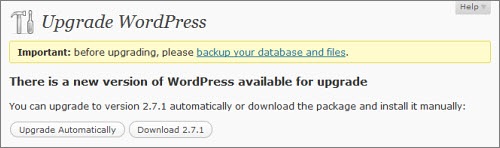
WordPress version 2.7.1 was released this week. If you’re running the immediate prior version 2.7, you now have a built-in option to automatically upgrade your installation with literally one click to the latest version 2.7.1.
So no more manual work – no downloading a zip or tar.gz file, extracting the files somewhere on your computer, reading the WordPress upgrade installation guide, backing up up your database, logging in to your server via FTP… no, no more of that. No need for a plugin, either, as all you need now is within the core of WordPress itself.
Just one click and you’re in business.
Is it really that simple?
On the face of it, it is. With each new version of WordPress that adds functionality and improves itself as a robust application, the developers have evolved it to the extent that it is easy to perform tasks that in earlier days required a wholly manual process and some not inconsiderable technical knowledge and skill.
I have to say, though, that when I get down this weekend to upgrading my various blogs – about half a dozen in total – to this latest WordPress version, I won’t be using the built-in WordPress upgrader.
Instead, I’ll continue to use the DreamHost 1-Click install, a service provided by my hosting service.
The reason for me is one of trust and confidence. It’s not that I don’t trust nor lack confidence in WordPress. Far from it. It’s just that I have complete confidence in DreamHost’s 1-Click system based on experiences over the past few years where it just works, seamlessly and reliably. Plus it backs up your entire WordPress installation so in the event of disaster, recovery is quick and easy.
I’m sure the built-in WordPress upgrade is good. Yet I don’t know anyone who has used that function without some pain.
However you upgrade your WordPress installation, whether the manual way or with one automatic click, you should still follow the advice in the WordPress upgrade guide on things like backing up your database.
As for me, I’ll be following my 6-step upgrade procedure:
- Back up the WordPress MySQL database.
- Disable all plugins (yes, every single one) and revert the theme to the WordPress default aka Kubrick.
- Run DreamHost 1-Click and wait for email confirmation that the upgrade has been done.
- Log in to the blog and re-enable the two most important plugins: Akismet and Bad Behaviour, the first line of defence against the spammers and other bad guys.
- Re-enable the usual theme.
- Re-activate all my other plugins one by one, testing after each one to be sure they work (here’s a list of the plugins I have running, all of which work with 2.7 and which I expect to do so with 2.7.1).
You could easily substitute ‘WordPress automatic update’ for ‘DreamHost 1-Click’ in step 3.
It really is that simple and straightforward. Steps 1 to 3 should take no longer than 15 minutes. Step 6 is more time consuming but worth the effort in case a plugin breaks your blog.
How are you planning to upgrade your WordPress?





9 responses to “How do you upgrade your WordPress?”
Hobson: How do you upgrade your WordPress?:
WordPress version 2.7.1 was released this week. If you’re ru.. http://tinyurl.com/anyjup
Hey Neville,
Just updated to 2.7.1. Automatic update with my host wouldn’t completely work as the file permissions were too tight. So, using your formula above, I safely backed everything up, then used the Automatic update up until the point it failed.
Then I note the file it failed on, change the permissions on that file, then restart the Automatic update. Repeat.
Eventually I got to the point where I was modifying the permissions on all files in the directory.
After the upgrade completed, I went back and manually reset all file permissions back to their previous state.
Clunky, but it worked.
My host uses the Fantastico suite, and they’ve not the fastest to update. Since I manually installed WP, Fantastico has no baseline to upgrade from, so manual processes for me.
Upside? I’m much more in touch with my WP installation than if I was using an automated process.
Downside…upgrade took about an hour :(
I’ve been using the InstantUpgrade plugin for at least a year now, and it works like a charm on DreamHost, GoDaddy, iPowerWeb and, I suspect, on others. (Not sure which host one client uses, but I used InstantUpgrade to upgrade to 2.5 and then to 2.7.) I’ve used both the FTP and the HTTP versions.
Naturally, I back up not only the database but in fact the entire site before I proceed, just in case. Why take chances?
I used the new automatic upgrade option after backing everything up, and encountered an error.
Deactivated the WP auto update plugin which I had used for everything until now (and which did an amazing job of it), and then re-ran the new automatic update option and it worked fine and completed in about two minutes.
What I take from this – WordPress auto-upgrade is a preferred way to do it but it’s still not robust and reliable enough. Reflects what I hear elsewhere.
Thanks for your views, everyone.
I updated both my blogs using the WP upgrade feature and it worked really good. No problem with my custom hacks and plugins. Really impressive actually :)
Just upgraded with the built-in feature – worked a dream! Can’t believe it wasn’t included earlier…
Take your point about automatic backup though.
[…] How do you upgrade your WordPress? (nevillehobson.com) […]
[…] I’ve written quite a few times in the past about upgrading blogs to the latest version of WordPress whenever one is released. Upgrading is usually a pain-free experience as long as you do some simple but important preparation beforehand. […]